

Post-Update Fixes and Tasks
Here are a few things to keep in mind while reviewing the new site:
How do I bring my latest edits into the new site?
If you made changes that you need to bring into the new site, find the page that you need to update. If you remember what the changes were you can make them now in the new page. If you need to copy and paste from the old site, be sure to copy from the reference site while using the same browser. You can have two windows open in the same browser and copy and paste between them. Images cannot be copied and pasted. You will need to upload them into the new site and then add them into your content.
Some images are the wrong size
Some images may not be the size you set them to in the previous version of the site. It's easy to change them to the size you want by double-clicking on the image and selecting an appropriate image style. See the images documentation for best sizes to use and also how to work with images while editing.
My images are stacking awkwardly
Often times when adding an image on the left and text on the right, and repeating this process on page, causes unintended nesting.
-
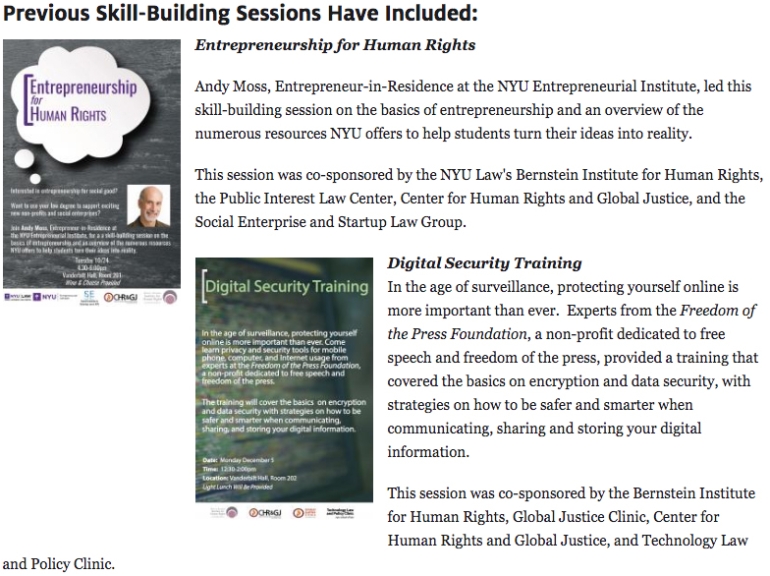
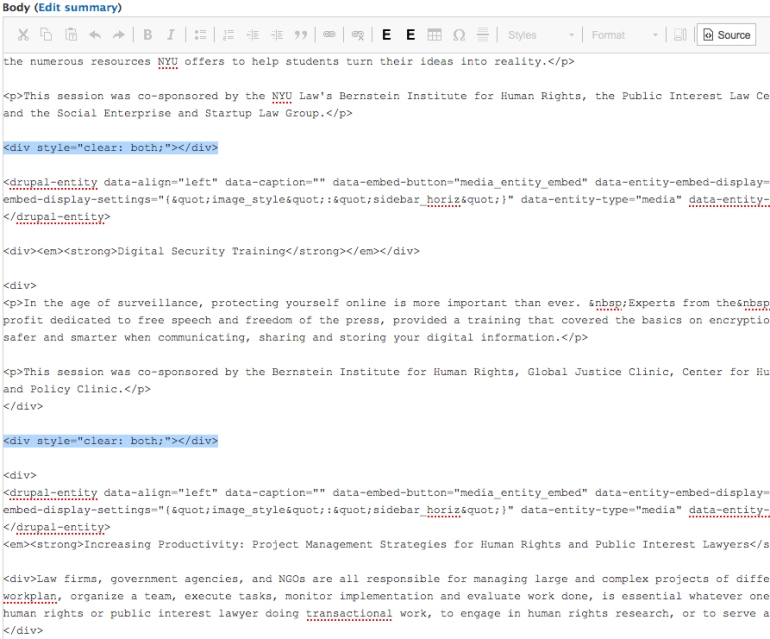
- In order to fix the formatting issue, go into your Source code and add <div style="clear: both;"></div> in between each entry.
-
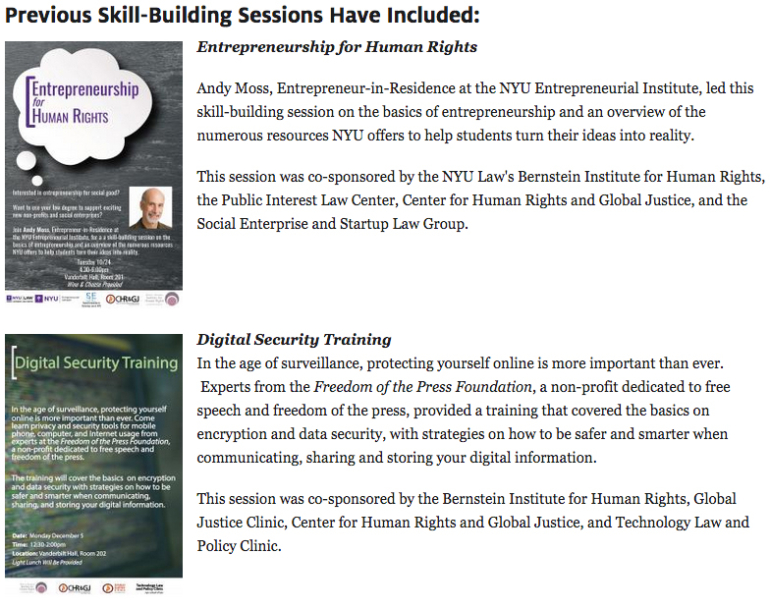
- After you click Save the nesting issue should be gone and your formatting should look correct.
-
My sidebar blocks don't have the right color title
If your sidebar block title bars are not showing the right color, you can easily fix this. Open the page in the editor and scroll down to find the sidebar you want to change. Look for 'Sidebar Block Background Color' and choose the color your would like it to be. Save the page and you'll see the new color.